Google Business Profile suspension could be an unpleasant issue for a local business. In case of a profile suspension, the business won’t show up correctly on Google Search or Google Maps, and the owner will lack the use of all the features of the profile.
For the businesses that rely on local searches, it would affect their inquiries, calls, directions and website clicks. Fortunately, a profile suspension does not automatically mean that the profile cannot be recovered. There is an official procedure for appeal of suspended or disabled profiles. The crucial point here is to find out what causes the suspension and how to demonstrate that the business deserves a Business Profile.
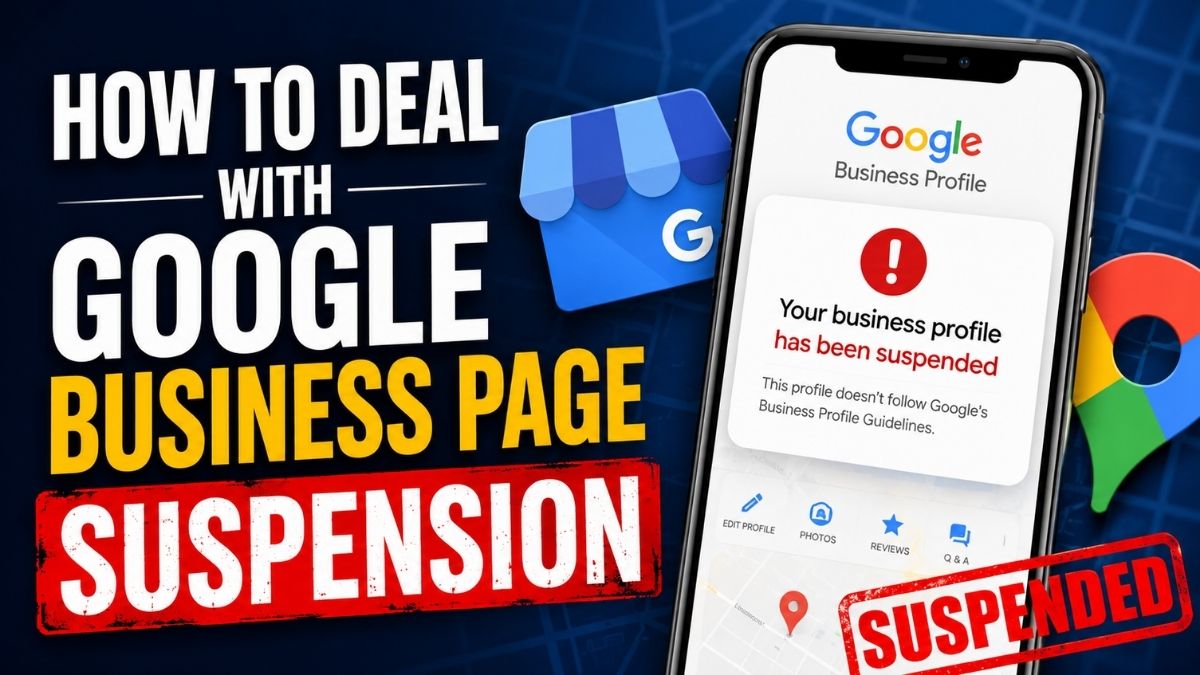
What Is a Google Business Profile Suspension?
A suspension happens when Google limits or removes a profile because it may violate Google’s policies. Depending on the violation, Google may also restrict the account that manages the profile.
Signs of a suspension include a notice in your dashboard, your listing disappearing from Google Maps, or being unable to edit or use certain features. Google’s guidelines describe several restriction types, including ineligible business, account restriction, location suspension, ownership issues, required verification, and address-related violations. Your first job is to find out which one applies to you.
Why Does Google Suspend Business Profiles?
The objective of Google is to get businesses to use Business Profiles to be actual businesses meeting its eligibility criteria. Businesses are expected to physically interact with their customers during their business hours, except for some qualifying businesses like service area businesses.
Common problems that can contribute to suspension include:
- Using a business name that does not accurately represent the real-world business
- Providing an incorrect or misleading address
- Creating duplicate profiles for the same business
- Choosing inappropriate business categories
- Creating profiles for businesses that do not qualify
- Using a virtual office or unsuitable address
- Making misleading edits
- Having ownership or verification problems
- Using prohibited or misleading business information
- Violating Google’s rules regarding business representation
A sudden change to important information can also lead to additional scrutiny. For example, changing the business name, address or category can create verification concerns. However, you should not assume that a recent edit automatically caused your suspension. Check the specific reason shown in Google’s appeals system.
Step 1: Identify the Suspension Reason
Before changing anything, sign in to the Google account associated with the Business Profile.
Open Google’s Business Profile appeals tool. Google will show the restricted profile and provide information about the moderation action, including a link to the relevant policy where applicable. Read that information carefully.
Do not immediately submit an appeal saying that the suspension is a mistake. First determine whether something on the profile actually conflicts with Google’s guidelines.
For instance, if the profile shows an address that does not correspond to a valid customer-facing business location, then you might have to fix the address issue or prove that your business is a service-area business. In case the issue pertains to the business name, ensure that the business name in Google is accurate.
Step 2: Review the Entire Profile
Do not focus only on the field mentioned in the suspension notice. Review the complete profile.
Check the following:
Business name: Does it match the actual name used by the business?
Address: Is it a legitimate business location, where applicable? Does the business actually operate there?
Phone number: Does it represent the business and remain under the business’s control?
Website: Does the website belong to the business and accurately represent its services?
Category: Does the primary category accurately describe what the business does?
Hours: Are the opening hours realistic and current?
Duplicate listings: Is another profile representing the same business at the same location?
This review matters because submitting an appeal while leaving a policy problem untouched can weaken your case.
Step 3: Collect Strong Evidence
Evidence can make an appeal much more convincing, particularly when Google needs to establish that the business is legitimate.
According to Google, some of the documents which include business registration, business licenses, tax certificate, and utility bills are among some of the evidence used to support your appeal process. It is important for you to have documents that directly link the business to the profile information.
For instance, if your profile shows a certain name and address of the business, your evidence must include the same information. Google particularly mentions checking whether the business name and address match with the profile.
Depending on your circumstances, useful evidence may include:
- Business registration documents
- Trade or business licences
- Tax documents
- Utility bills
- Photographs of permanent business signage
- Photographs of the premises
- Documents showing the business address
- Other official documents establishing the business’s legitimacy
Do not submit irrelevant documents simply to make the evidence package larger. The goal is to establish eligibility and demonstrate that the profile accurately represents a real business.
Step 4: Submit the Official Appeal
Once you have reviewed the profile and corrected legitimate problems, submit the appeal through Google’s official appeals process.
Google’s current process requires you to sign in with the account associated with the Business Profile, select the affected profile and submit the appeal. The system then provides an opportunity to add supporting evidence where applicable.
Pay close attention to the evidence submission window. Google states that if you open the evidence form after submitting an appeal, you must submit the evidence within 60 minutes for it to be attached to the appeal.
Prepare your documents before starting the process so that you do not lose valuable time.
Step 5: Do Not Create a New Profile
The most common mistake that business owners commit after a suspension is creating yet another Business Profile for the same business. This only causes more problems since, as mentioned by Google, users should not create another Business Profile for the same business during the time that the appeal process is going on.
Moreover, doing so does not address the problem of violating the policy at all. In fact, the violation of the policy will simply cause another suspension if another profile is created.
Step 6: Wait for the Appeal Decision
Once you’ve appealed your case, you need to avoid resubmitting an appeal on the same case again. Google says that users should not appeal more than once on the same issue until a decision is made. There are other statuses like submitted, approved, not approved, cannot appeal and can appeal that can be seen from the appeals section.
According to Google, for some specific types of appeals, a decision can take up to five working days. In these five days, you should make sure you have all your documentation prepared.
Also Read: How to Optimise Google Business Profile in 2026
What If Google Rejects the Appeal?
Just because your appeal was rejected does not necessarily mean that there is nothing else that can be done. You can apply for another review of your appeal by Google. At this point, you can add more proof that you did not provide with your first appeal.
If your first appeal fails, review the reason again rather than simply submitting the same explanation.
Ask yourself:
- Did I provide enough evidence?
- Does my business actually meet Google’s eligibility requirements?
- Does my profile accurately represent the business?
- Does the address create a problem?
- Are there duplicate profiles?
- Does the business name match the real-world name?
- Did I overlook an account restriction?
A stronger second submission should address the specific weakness in the first appeal.
How to Prevent Future Suspensions
The best way to respond to a Google Business Profile suspension is through prevention of unnecessary issues related to the policy. Make sure you provide accurate information for your listing. Make use of the official business name, proper category, legitimate contacts and correct location information. Avoid making duplicate listings only for purposes of targeting other keywords and locations.
Also, if an SEO company manages your profile, ensure that there is appropriate control by the business owner. Google’s requirements mandate authorised representatives to work alongside the business owner without any misleading activities and use of the official phone number and website for the business.
Additionally, be cautious about changes made to the profile. Verify the information before making changes since they might not be accurate or even documented.
Final Thoughts
Google Business Profile suspension is indeed a daunting task, but panicking will get you nowhere. In this regard, the best way to handle a Google Business Profile suspension is by establishing the specific issue, looking at the whole Google Business Profile, fixing any issues in the policy, gathering relevant evidence and appealing through Google’s official channels.
The most important thing is that you treat the suspension as a matter of policies and verification, and not purely as a technicality issue. By presenting an appeal that is well prepared, you help Google make the decision regarding your Google Business Profile’s eligibility for reinstatement.
In case you have experienced Google Business Profile suspension, the best thing you can do is to avoid creating a new listing for your business.