Academic writing requires accuracy, and one of the important aspects is citing sources. In many Australian universities, there is a requirement to use the Harvard AGPS format, which is somewhat different from other Harvard styles. However, Microsoft Word does not have the option of Harvard AGPS citation by default, causing a lot of trouble to both students and academics.
But don’t worry. It is absolutely possible to add the Harvard Referencing Style as an additional bibliography style to MS Word.
This guide explains a clear, practical method to add Harvard AGPS referencing to MS Word, ensuring your citations remain accurate and consistent throughout your document.
What is Harvard AGPS Referencing?
Although the Harvard AGPS (Australian Government Publishing Service) uses the author-date method, it has its own guidelines with regard to punctuation, government publications, and citation styles. For instance, there is a need for in-depth citation for official publications and more stringent guidelines when citing multiple authors.
Many Australian universities use this citation style. According to a 2023 study on academic integrity conducted in Australian universities, about 65% of the universities have opted for Harvard-based citation styles, including AGPS citations. Such citation styles are predominantly used in subjects like business, law, and public policy.
Adding Harvard AGPS Reference Style in MS Word
Step 1
Download the addon file by clicking the button below.
Unzip the file and keep it in a safe location on your system.
Step 2
In the second step, we have to place this file and other bibliography files in XML format.
If you are using MS Word up to 2010 version
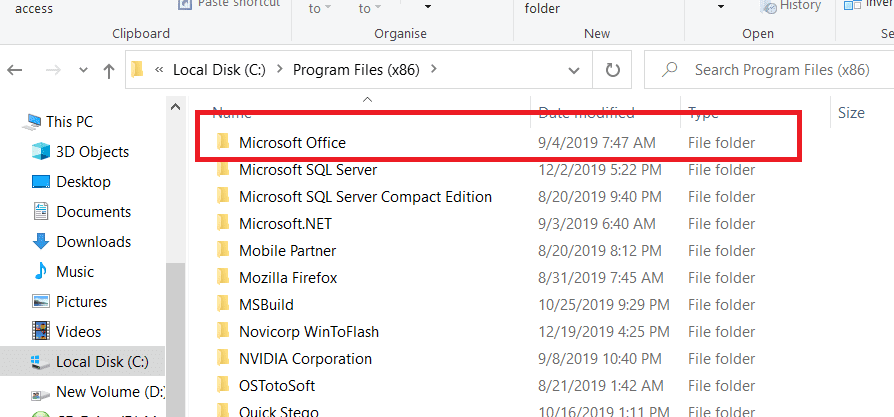
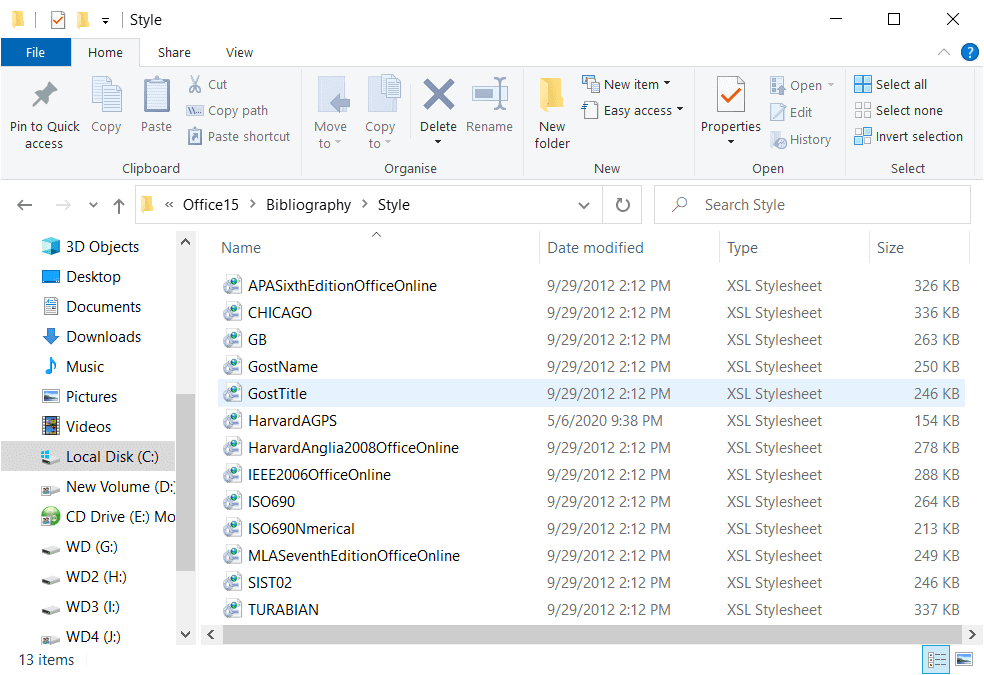
It is pretty straightforward. Just go to the C drive, then program files, then Program file or Program file(x86) based on whether you are using a 32-bit or 64-bit setup. In my case, I am using a 32-bit setup. You have to find the Microsoft Office folder, as shown in the image below.
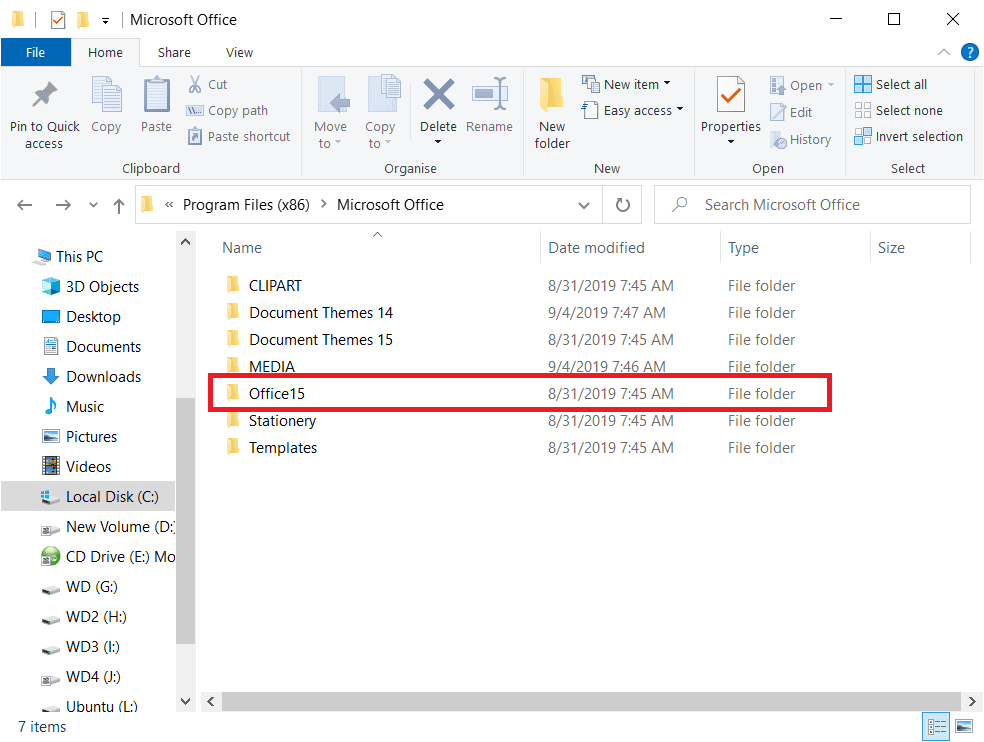
I am using Office 2013, so it shows Office 15.
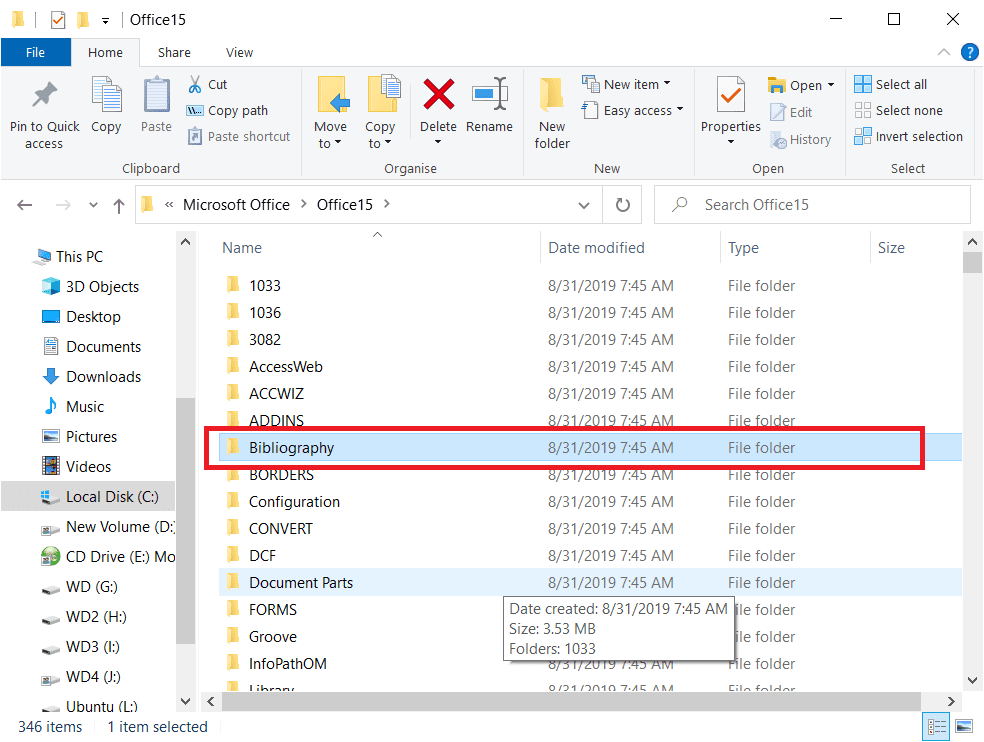
Find the bibliography folder.
Select Style
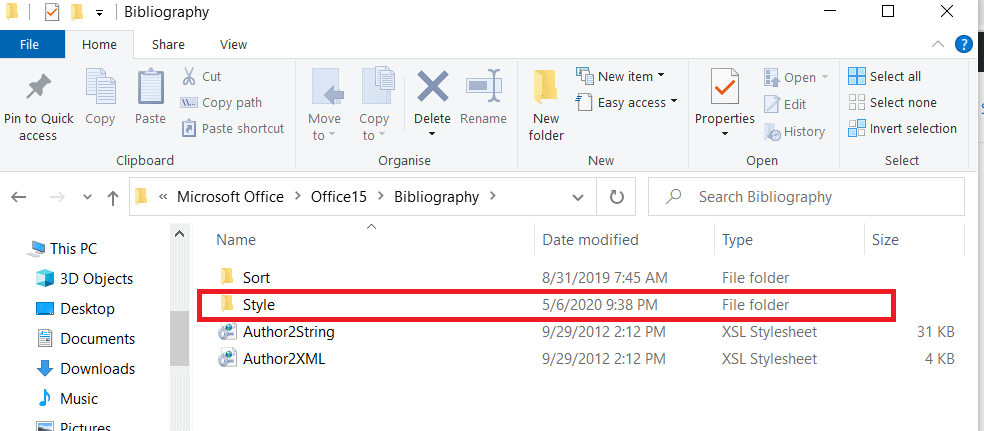
Just paste here the Harvard addon file, which you downloaded earlier.
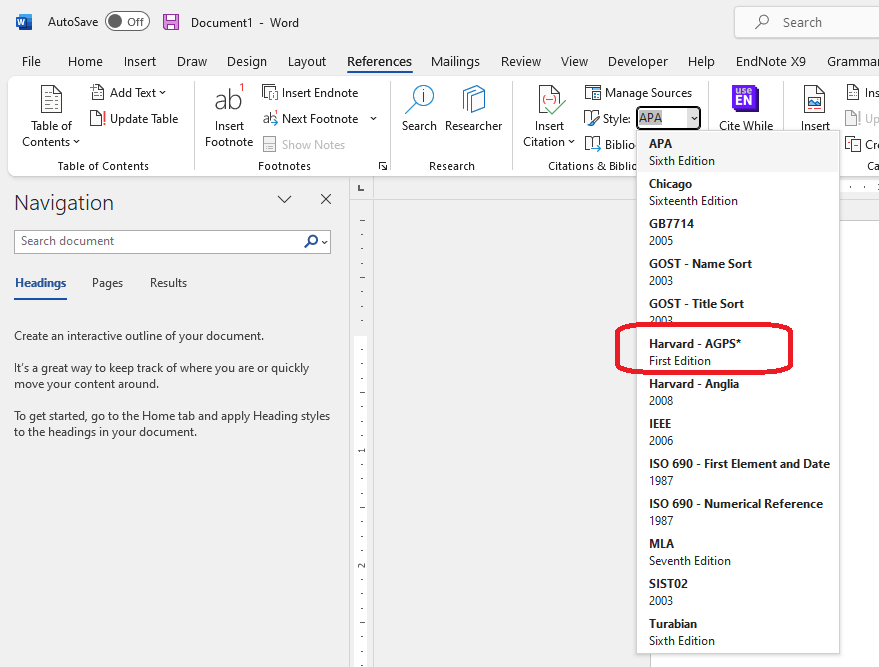
Make sure to restart MS Office if it was opened during the process. If it was already closed, you are already good to go. When you open your MS Word, you will see this additional referencing style in the Citations and Bibliography tab, as shown in the image below.
Please note that the above steps are intended for MS Word version 2010 or below. So, if you are using version 2013 onward, the method won’t work. I have installed it through an alternative method that I will explain below.
MS Word version 2013 onwards
This method is for you if you are using MS Word versions 2013, 2016, or 2019.
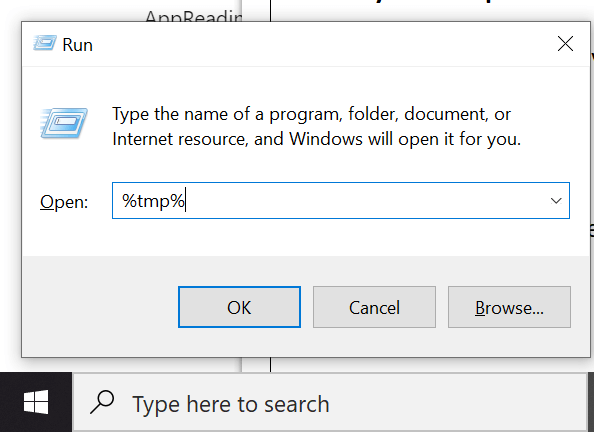
Go to the temp folder using the %temp% command in RUN
Click the AppData folder
Click Roaming
Click Microsoft
Click Bibliography
Click Style
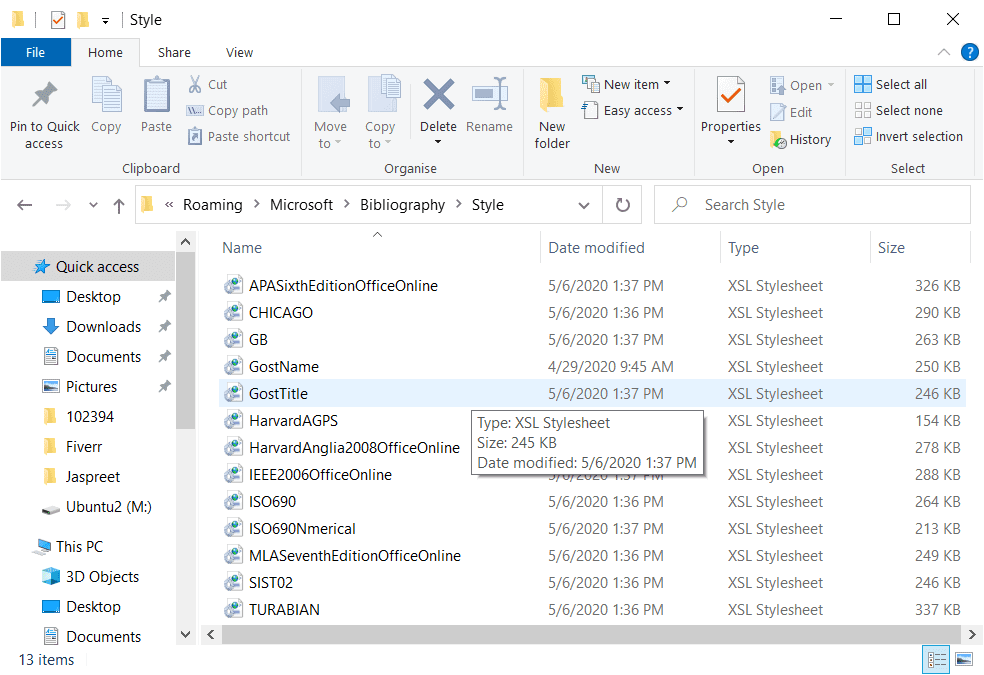
And paste the downloaded addon file (in XML Stylesheet format, not in zip format). You are good to go.
Why MS Word Does Not Include Harvard AGPS
Microsoft Word offers built-in referencing styles such as APA, MLA, and standard Harvard. However, Harvard AGPS is not pre-installed because:
- It is a regional variation
- It changes across institutions
- Microsoft focuses on globally standardised styles
As a result, users must manually add or import the required style.
Final Words
You will see the Harvard AGPS referencing style in your MS Word the next time you open it. If not, make sure you have followed all the steps properly. If you find this tutorial helpful, please comment and let me know. If you still have any doubts, let me know in the comments section. I will try to help you out.