The “Critical Process Died” stop code in Windows indicates that a critical system process has terminated unexpectedly, causing the system to crash.
Upon encountering this stop code error, it is important to troubleshoot and identify the underlying cause through methods such as running System File Checker (SFC), updating drivers, or checking hardware components for errors.
However, the good news is that it is possible to fix this error by following some simple steps. But first, we need to understand the cause of the issue.
What Causes the Critical Process Died Error?
Windows relies on background processes to manage memory, drivers, and system operations. When one of these processes fails, Windows cannot continue safely. Several factors contribute to this issue.
Corrupted system files rank among the most common causes. Sudden power loss, forced shutdowns, or malware activity can damage core Windows components. Incompatible or outdated drivers also trigger this error, particularly after Windows updates. Faulty hardware, such as failing RAM or storage drives, may interrupt system processes as well. In some cases, third-party software interferes with system-level operations, leading to crashes.
How to Fix: Critical Process Died
Now, there are several ways to repair the issue that you have on your computer, but having said that, the keyboard is not working when you boot up to Windows with the command prompt, so troubleshooting requires us to use a working keyboard. You might need to get an external one to run the repair on your computer.
Assuming that you have the keyboard/external keyboard up and running, here are some steps that might help you repair your Windows.
Restart Your System and Observe the Pattern
A simple restart sometimes resolves temporary glitches. If the system boots normally after restarting, monitor performance closely. Repeated crashes indicate a deeper issue that requires troubleshooting.
If Windows enters a restart loop and fails to load the desktop, access the Windows Recovery Environment by interrupting the boot process two to three times. This environment allows diagnostic and repair actions even when Windows does not start normally.
Boot Windows 10 in Safe Mode
Safe Mode loads Windows with minimal drivers and services. This environment helps identify whether drivers or third-party software cause the crash.
From the Recovery Environment, select Troubleshoot, then Advanced options, followed by Startup Settings. Restart the system and choose Safe Mode. If the error disappears in Safe Mode, the issue likely relates to drivers or installed programs rather than Windows core files.
Once inside Safe Mode, uninstall recently added software and roll back any driver updates installed before the error appeared.
Run System File Checker to Repair Corrupted Files
The SFC Scannow utility is a widely utilised tool for identifying and resolving corrupted or absent system files on Windows operating systems. It scans the system thoroughly and aids in restoring any damaged files, ensuring the proper functioning of the OS.
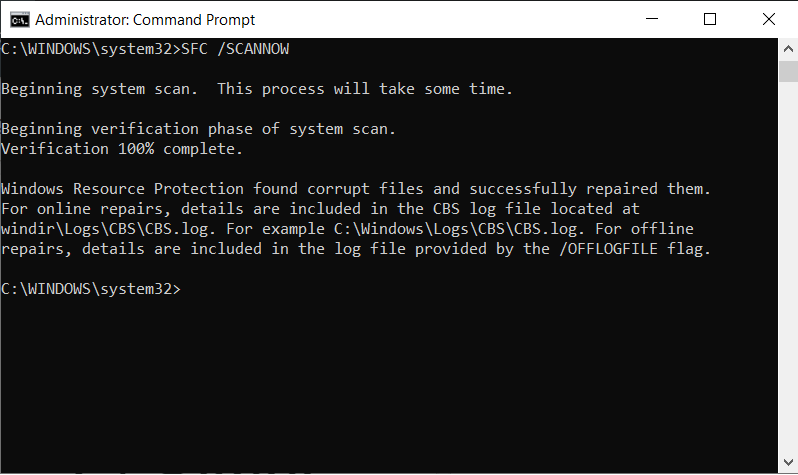
To do that, you just need to boot your computer again with the command prompt with administrator privileges, type sfc /scannow and hit enter. It will find any integrity issues and violations on your computer and will attempt to repair them. As you can see in the screenshot above, Windows Resource Protection has fixed the corrupted files automatically.
Use DISM to Restore Windows Image Health
The DISM (Deployment Image Servicing and Management) utility is recommended for repairing corrupted Windows images. It allows users to scan and restore any damaged system files, consequently improving the stability and performance of the Windows operating system.
Once SCF completes its scan, you need to run the following command one at a time to repair any corrupted Windows images.
*Dism /Online /Cleanup-Image /CheckHealth
*Dism /Online /Cleanup-Image /ScanHealth
*Dism /Online /Cleanup-Image /RestoreHealth
Run Check Disk on your computer
On the same Windows command prompt, you can try to run a check disk on your computer to check and repair both file system errors and scan for and recover bad sectors. To do this, type chkdsk /r on the command prompt and hit Enter. Wait for the process to complete and restart your computer.
If all the troubleshooting steps mentioned above didn’t work, you might need to create a Windows Bootable Media to repair the computer. You can do that by visiting this link and following the instructions on how to create a bootable media to repair Windows: https://www.microsoft.com/en-us/software-download/windows10
Check Windows Updates
Windows updates sometimes introduce conflicts, especially on systems with older hardware. If the error began after an update, uninstall the most recent update from Settings > Update & Security > Windows Update > View update history.
Conversely, if the system lacks updates, install pending patches. Microsoft frequently releases stability fixes that address known blue screen issues. Updating Windows ensures compatibility with security patches and driver improvements.
Disable Third-Party Startup Programs
Some background programs interfere with Windows processes during startup. Performing a clean boot isolates these conflicts.
Open System Configuration, disable non-Microsoft services, and restart the system. If the error disappears, re-enable services gradually to identify the problematic program. This method helps pinpoint conflicts without reinstalling Windows.
Reset Windows 10 as a Last Resort
When all troubleshooting steps fail, resetting Windows provides a clean system while preserving personal files. Choose Reset this PC from the Recovery Environment and select the option to keep files.
This process removes corrupted system components and problematic software. Back up important data before proceeding to avoid accidental loss.
Also Learn: How to fix the USB not recognised error on Windows 10
Conclusion
The Critical Process Died stop code in Windows 10 signals a serious system-level failure, but it does not always require drastic action. Most cases stem from corrupted files, driver conflicts, or hardware instability. By using Safe Mode, repairing system files, updating drivers, and checking hardware health, users can restore stability without reinstalling Windows. Structured troubleshooting and preventive maintenance ensure smoother system performance and reduce the likelihood of recurring blue screen errors.