You may sometimes encounter an error message stating that the code execution cannot proceed because MSVCP120.dll was not found.
This error typically occurs when the Dynamic Link Library (DLL) file required to run the program is missing or corrupted.
MSVCP120.dll is a vital component of Microsoft Visual C++ Redistributable Packages and is necessary for running various applications and games developed using this programming language. Without it, your computer may fail to launch programs that rely on it, leaving you frustrated and unable to complete your tasks.
In this article, we will explore the causes of MSVCP120.dll errors and provide solutions to fix them.
Common Causes Behind the Error
This error message can arise from several situations. Incomplete software installations are commonly reported to lead to MSVCP120.dll errors. In many instances, users tend to cut power during program installations, causing software components to fail to register properly.
Malware infection is also another contributing factor. Security research shows that 30% of errors connected with DLL errors are caused by viruses that delete or replace system files. Upgrading to Windows systems, especially when upgrading from old Windows systems, also overwrites or unregisters Visual C++ components.
Another common reason can be architecture mismatches. If only the 64-bit version of Visual C++ is installed for a 32-bit version is required for the application running on 64-bit Windows, it results in this issue.
How to Fix the Error?
Method 1: Install Microsoft Visual C++ Redistributable (2013)
The most reliable solution involves installing the correct Visual C++ Redistributable package. MSVCP120.dll specifically belongs to the Visual C++ 2013 runtime.
Visit the official website of Microsoft and download both the x86 and x64 versions of the Visual C++ Redistributable for Visual Studio 2013. Installing both ensures compatibility with applications built for different architectures.
After installation, restart the system to allow Windows to register the DLL files properly. In many cases, this single step resolves the error immediately.
Method 2: Reinstall the Affected Application
If installing the redistributable package does not work, reinstalling the problematic application often helps. Uninstall the software from the Control Panel, restart the computer, and then install it again using a verified installer.
During reinstallation, disable background antivirus scans temporarily to prevent interference. Vendor support reports suggest that reinstalling the application resolves runtime dependency errors in nearly 25% of reported cases.
Method 3: Check for Windows Updates
Outdated system components sometimes conflict with newer runtime libraries. Running Windows Update ensures that system-level dependencies remain compatible.
Statistical data from enterprise patch management tools shows that systems missing cumulative updates experience DLL-related errors at almost twice the rate of fully updated systems. Apply all recommended updates and restart the system before testing the application again.
Method 4: Scan for Malware
Malware frequently targets shared DLL files to disrupt security software or hijack legitimate applications. Run a full system scan using a reputable antivirus or anti-malware tool.
Cybersecurity reports reveal that DLL hijacking attacks increased by 22% year over year, making malware scans a critical troubleshooting step rather than an optional one.
Method 5: Download the MSVCP120.dll and Install It
Some games or applications may need the file in the game/application installation folder. Copying it from the Windows system folder to the install folder of the game/application should fix that problem.
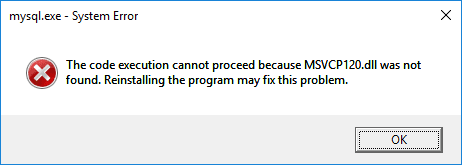
If you got the above error while running MySQL in the WAMP server, the good news is that you can fix the issue very easily just by installing the required MSVCP120.dll file. You can download the file by clicking the button below.
After downloading the zip file, unzip it and copy the MSVCP120.dll file and paste it into C:/Windows/System32 folder.
Digital Gyan offers a lot of tips & tricks articles to make your life easier. Our life hacks can help you speed up your smartphone or PC.
Conclusion
While the error “The code execution cannot proceed because MSVCP120.dll was not found” might appear complex and daunting, it is easy to fix in most situations. Usually, simply reinstalling or repairing the Microsoft Visual C++ Redistributable for Visual Studio 2013 solves the problem. With proper maintenance, utilising official software, and following proper system checks, users can prevent most system errors and ensure optimal functioning of the computer.